For arlanix/product-feed 1.0
Running and checking
A feed does two things when it runs: it builds the rows of its store view from the catalogue, and it delivers them, as a file on the store, an upload or an API push. Both are done by the Magento cron, on the schedule in the feed's Schedule section. This page is about starting a run yourself and about reading what a run did.
Run it now
In Arlanix → Feeds, open Select at the end of the row.
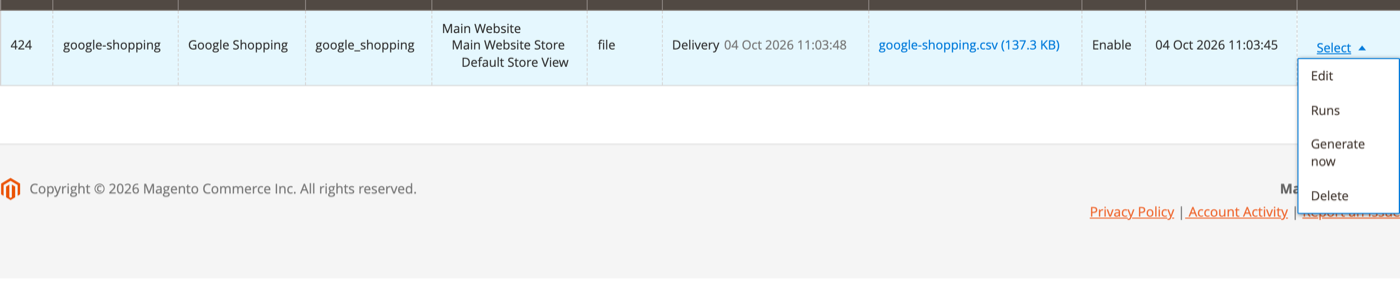
- Generate now queues a build and a delivery for the next cron pass, which is within a minute on a normal installation. For an API feed the entry reads Synchronize now and queues a complete comparison and push.
- Runs opens Run History filtered to this feed.
- Edit and Delete do what they say; Delete asks first and names the feed.
A minute or two later the row shows the result:
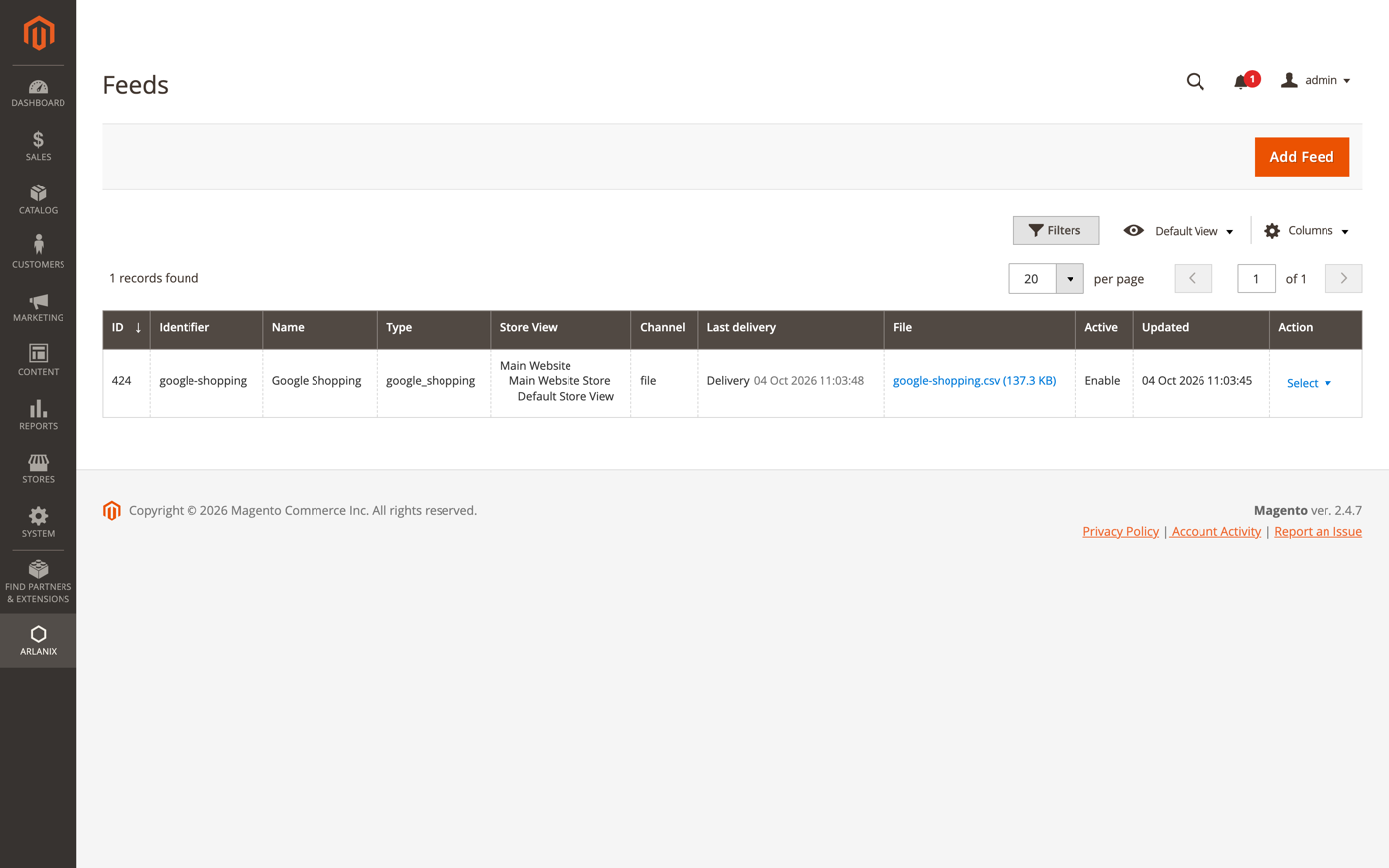
- Last delivery: when the feed was last delivered, or never delivered. A failed delivery says failed and when.
- File: for a file feed, a link to the published file with its size, or not generated yet.
Where the file is
The address of a file feed is shown in the feed's Channel section as URL, and the File column of the grid links to it:
https://your-store/media/arlanix/feeds/google-shopping.csv
This is the address you give Google, Meta or any other platform. The file is replaced on every run; a run that fails leaves the previous file in place, so the platform never fetches a broken one.
Run History
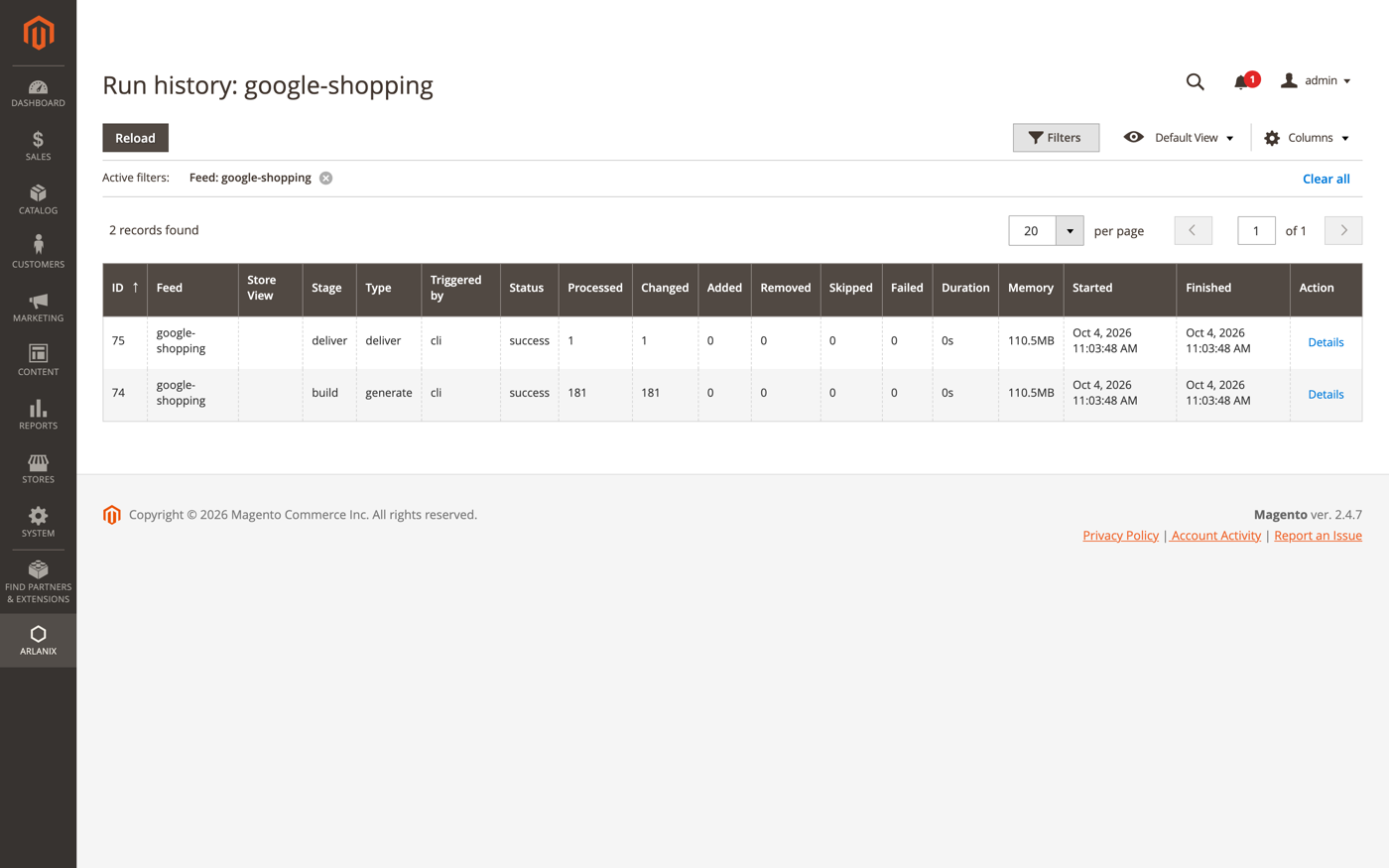
Runs in a feed's Select menu opens Run History filtered to that feed; Arlanix → Run History shows every feed and every store view. A run of a feed appears as two lines: the build that writes the feed's rows and the deliver that publishes them. The build of the store view itself, which reads the whole catalogue, is a line of its own in the unfiltered view.
| Column | Meaning |
|---|---|
| Feed, Store View | What ran: a feed, or a store view whose catalogue was read. |
| Stage, Type | build / generate writes the feed's rows; deliver / deliver publishes them; build / full reads the whole catalogue of a store view. |
| Triggered by | cron for a scheduled run, cli for the command line, admin for Generate now. |
| Status | success, failed, or running for one still going. |
| Processed, Changed, Added, Removed | How many products or rows the run looked at and what it did with them. |
| Skipped, Failed | Products left out, and products that could not be handled. A number here is the first thing to look at when the feed is shorter than expected. |
| Duration, Memory | How long it took and how much memory it used. A run also records the PHP it ran under, with its memory and time limits, so a run the cron started is judged by the command-line limits, not the admin's; the support bundle shows them for every run. |
Details at the end of a line opens the run's messages: what it generated, how many products it left out and why, the warnings of the run, and the error of a failed run.
A run's warnings are what the feed type found: a field the platform requires with no mapping rule, and how many products went out with an empty field the platform requires, a text over its length or a value it does not list. Each is one line with the number of products, not a line per product. Those products are in the feed all the same; the warning says what the platform may refuse, and where in the mapping to look.
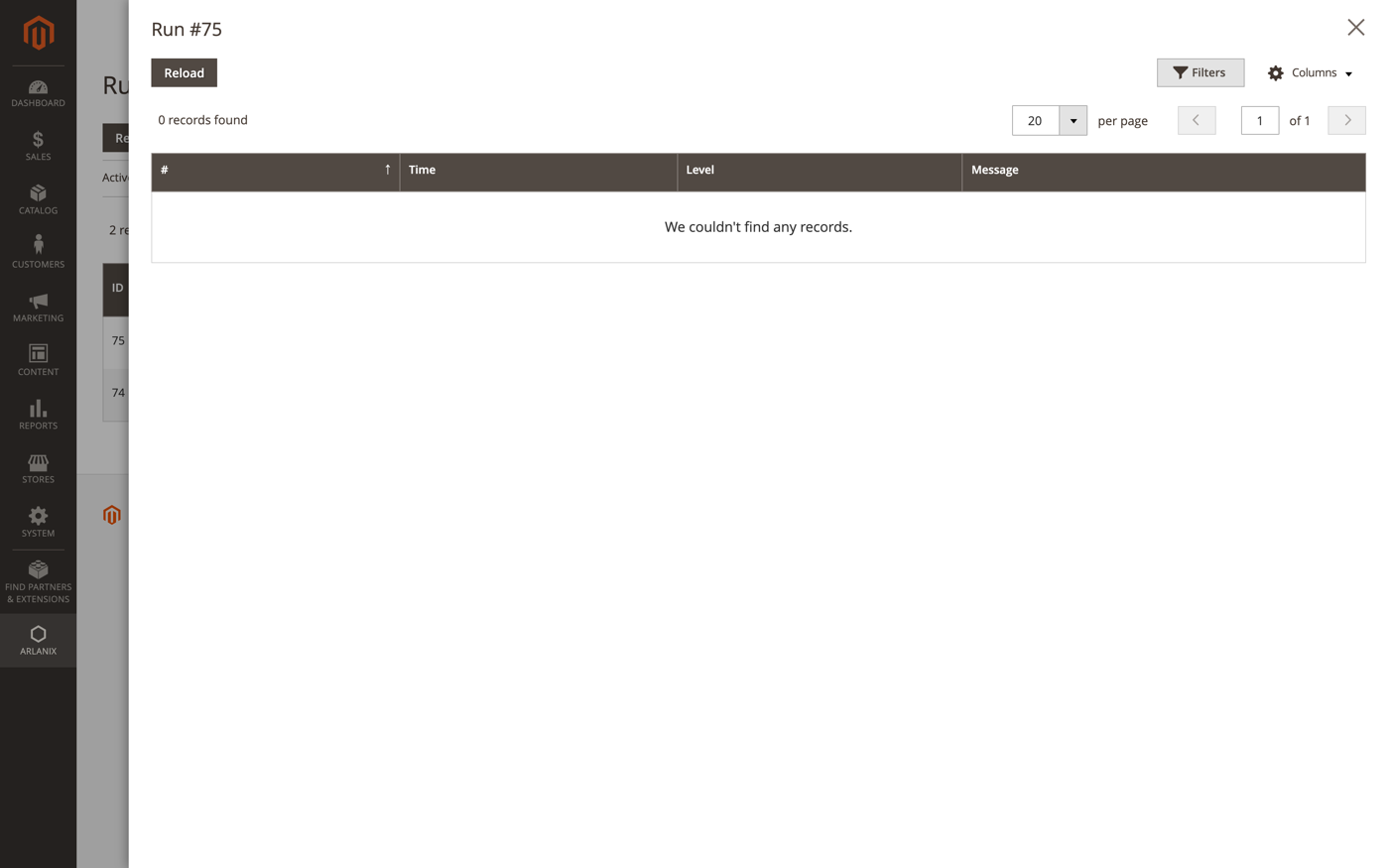
Old runs are cleaned up every night; a run that is still marked running after an hour is marked failed, so a crashed process does not block the next one.
Preview a product
Open the feed and press Preview at the top. A panel shows the rows of the first few products, exactly as they will be written, after dictionaries and modifiers. Under a row, Left out names the field marked Required that the product has nothing for, and that row is not in the output below; Warning names what the feed type would have otherwise, and the row is written all the same.
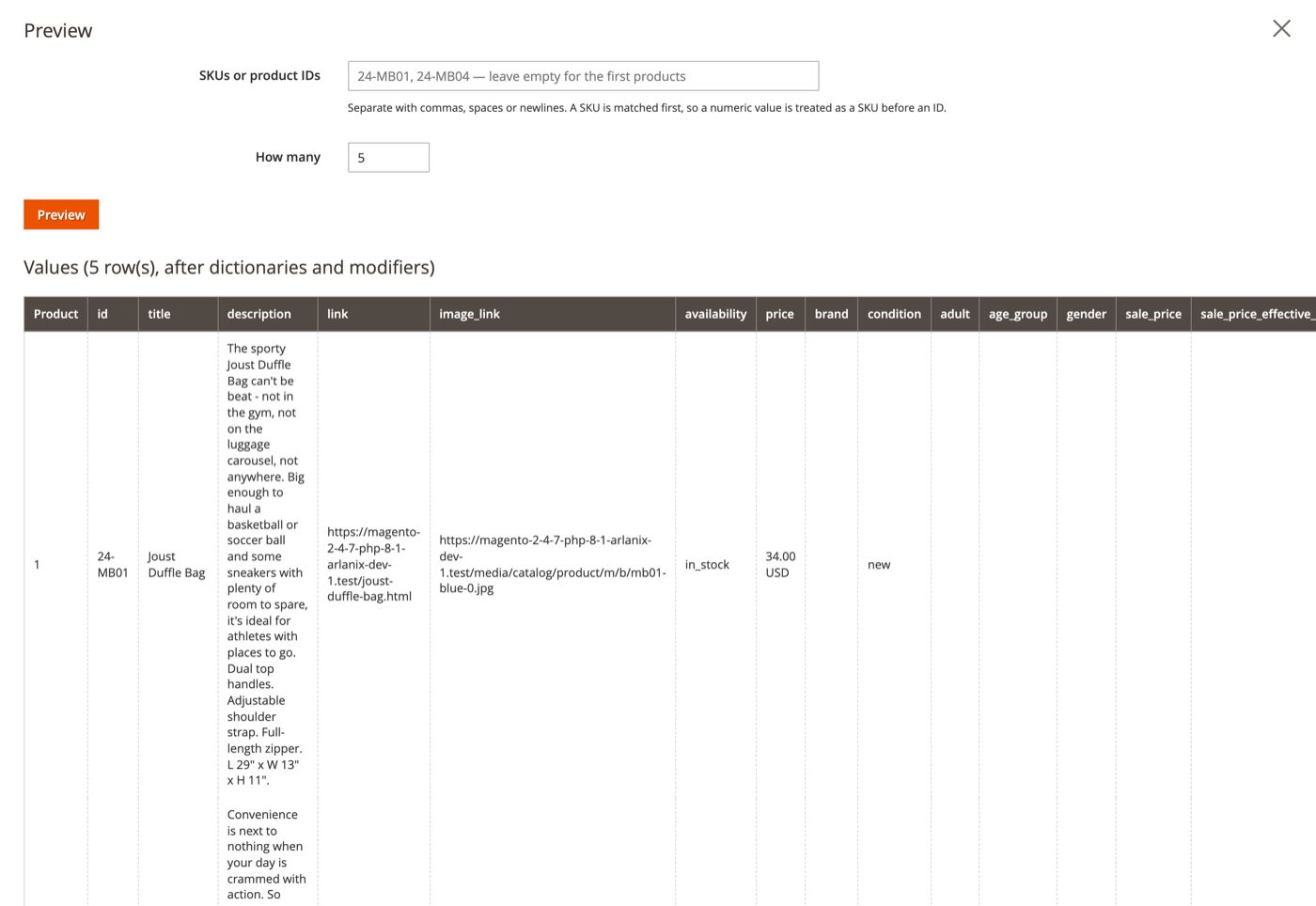
Type one or more SKUs or product ids into SKUs or product IDs and press Preview to see those products instead. A product that is not in the feed is named back:
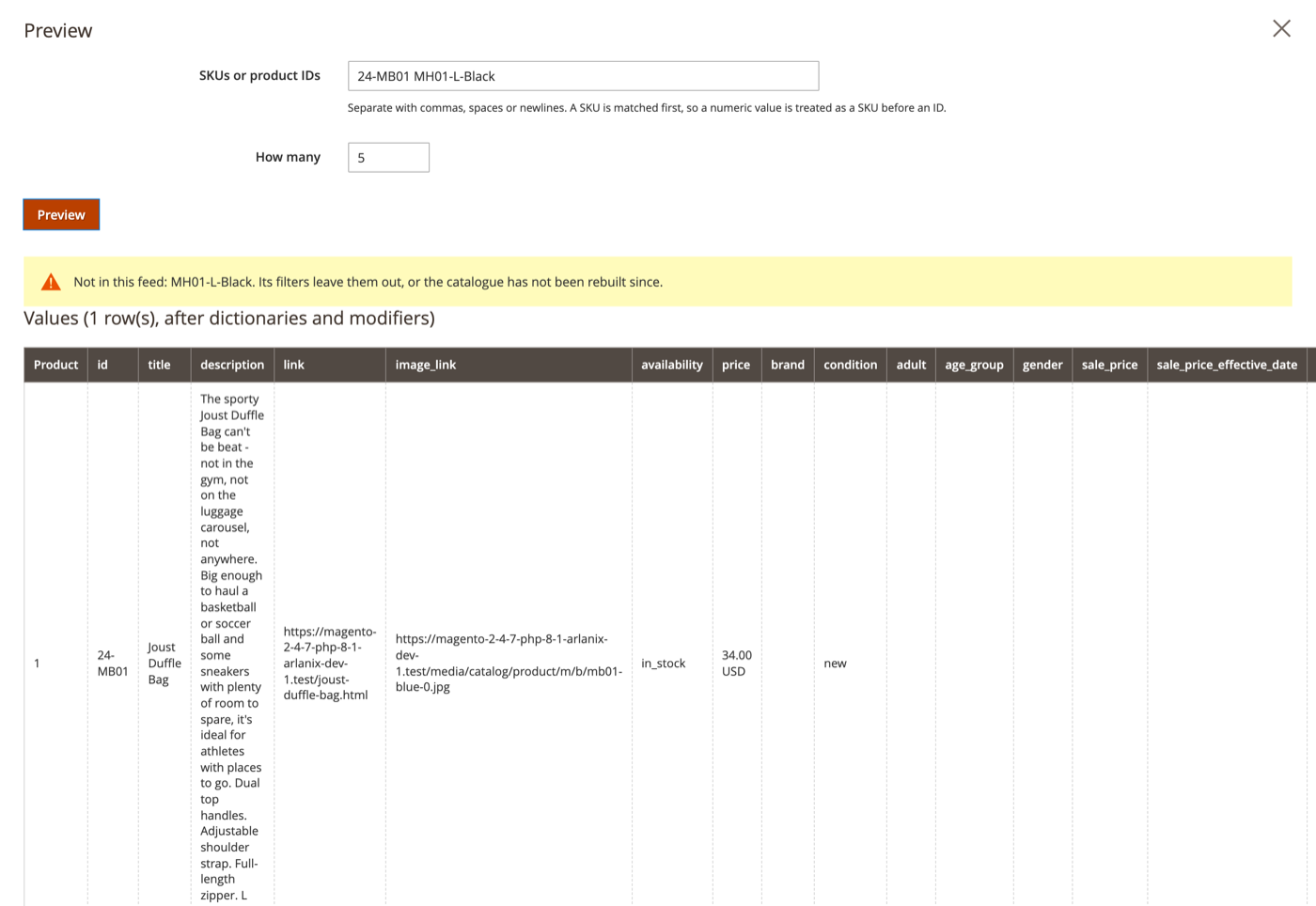
- Not in this feed means the product exists but the feed's Products filters leave it out, or the store view has not been built since the product changed. Here
MH01-L-Blackis a configurable child, Not Visible Individually, and the feed asks for Catalog, Search. - Not found in the catalogue means there is no such SKU or id.
- has not been built yet means the feed has never run on this store view: run it once.
See which products a feed covers
View products at the top of the feed form lists every product the feed covers, with its type, status, visibility and stock, in a grid you can filter and search.
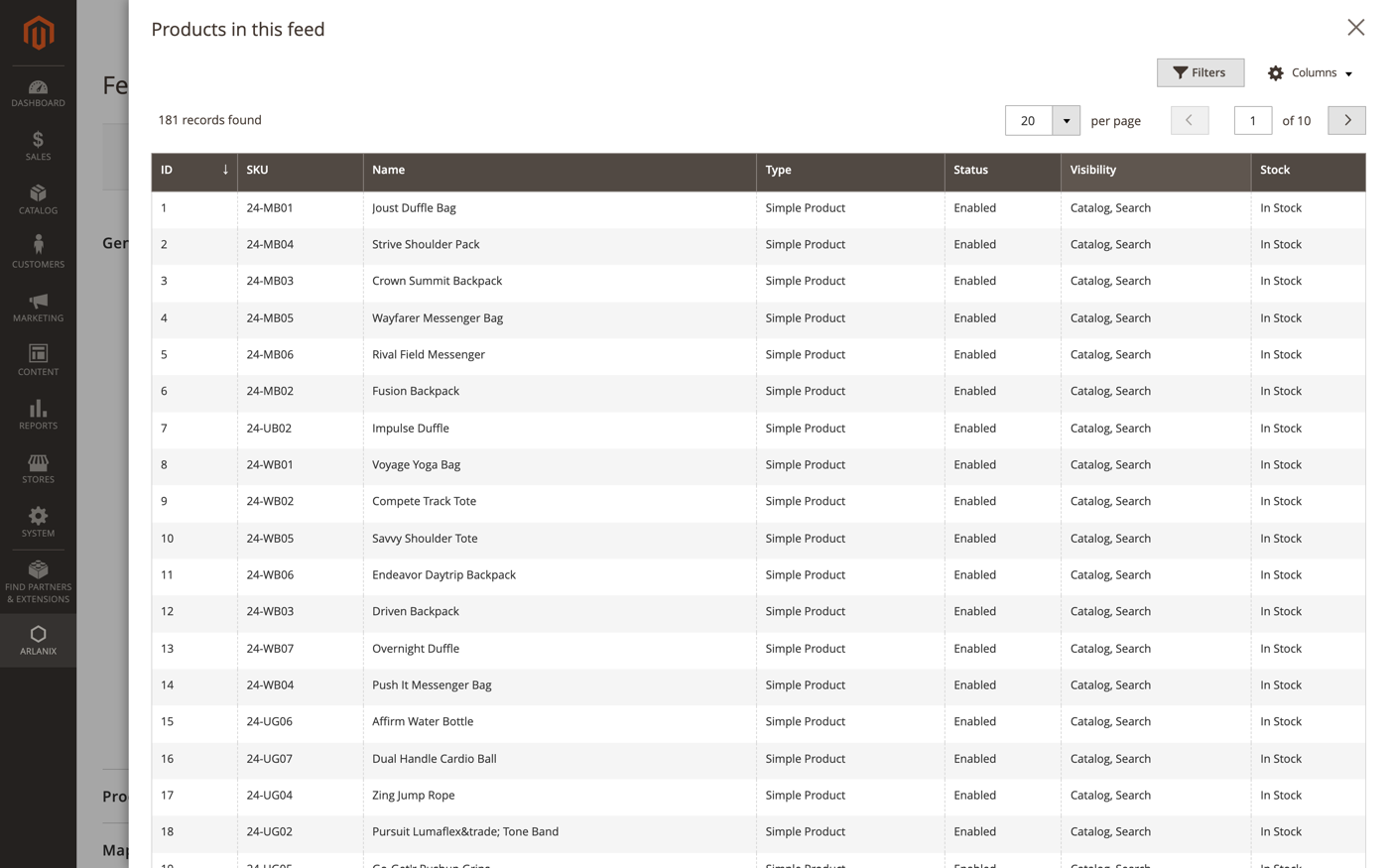
This is the list the filters in the Products section produce. A product missing here is missing because of those filters, not because of the mapping.
When something is wrong
| What you see | What it means | What to do |
|---|---|---|
| The grid says never delivered long after Generate now | The Magento cron, which runs the feeds, is not running. | Ask your developer to check it: When feeds never run tells them what to look at. |
| A product is missing from the file | Its filters leave it out, it has nothing in a field marked Required in the mapping, or a dictionary excludes it. | Preview it. Not in this feed points at the Products section; Left out under the row names the field; the run's Details count the products left out by field. |
| A column is empty for every product | The row's source is wrong, or it says -- Choose --. | Open the mapping row and pick a source. Preview to confirm. |
| Merchant Center rejects products | Google checks every product against its rules. | When Google rejects products lists the usual reasons and the fix for each. |
| Merchant Center shows the wrong price | The feed carries another customer group or tax setting than the site shows. | Products section: Prices for customer group and Prices with tax. |
| A run is failed | Read its Details. | A delivery failure names the server and the reason; a build failure names the product. |
| A field is refused on save with "unknown modifier" | A chip holds a name the module does not know. | Open + on the row and pick from the list. |
Still stuck? Download the support bundle under Stores → Configuration → Arlanix → Support and write to support@arlanix.com with it, the feed identifier and the lines of Run History.