For arlanix/product-feed 1.0
SFTP delivery
With arlanix/module-feed-sftp a feed is uploaded to an SFTP server instead of, or as well as, being published on the store. Google Merchant Center accepts feeds this way, and so do most marketplaces and price comparison services.
An SFTP connection is a record of its own, shared by every feed that uploads to the same server. First make the connection and test it; then point a feed at it.
Step 1. Make a connection
Go to Arlanix → SFTP Connections and press Add SFTP connection. Or, from a feed form whose channel is SFTP, press + next to the connection picker: the same form opens in a panel.
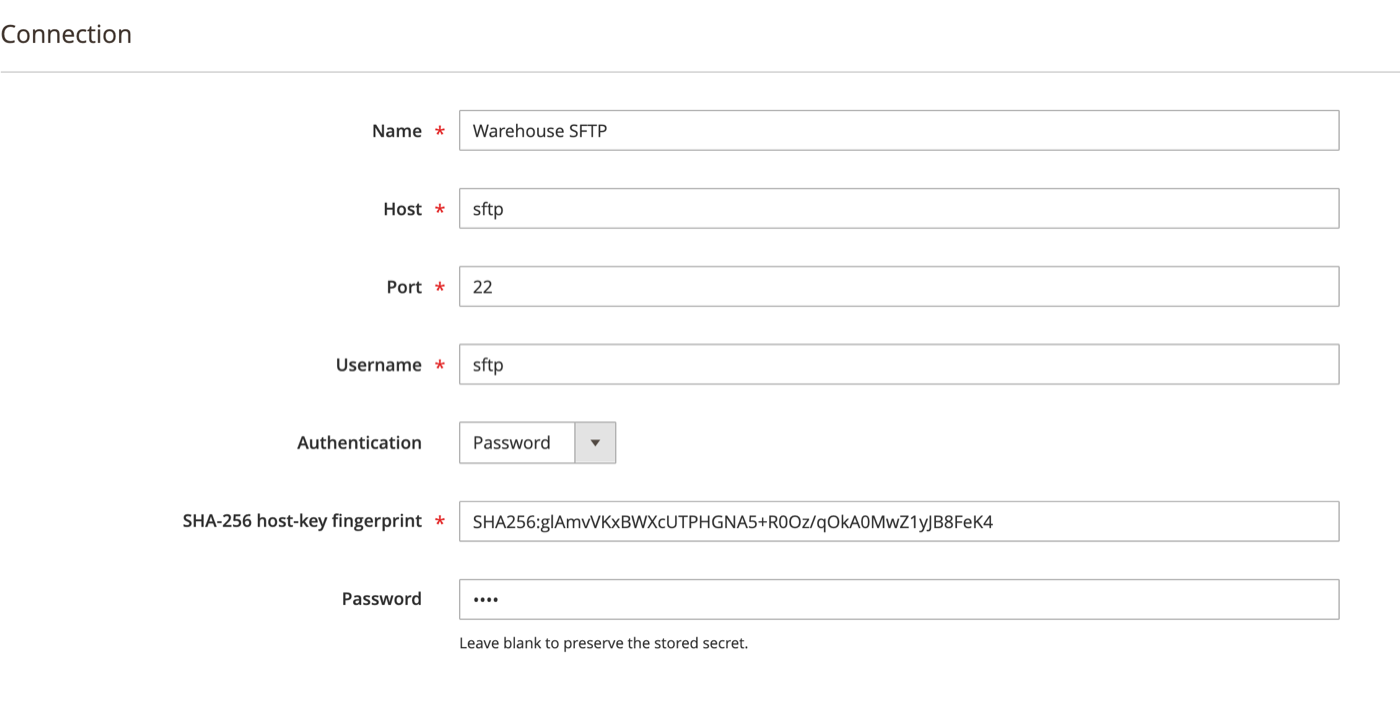
| Field | What to enter |
|---|---|
| Name | Your own name for the connection: Warehouse SFTP, Google Merchant Center. |
| Host | The server's host name or IP address, with no sftp:// in front. |
| Port | 22 unless the server says otherwise. Google Merchant Center uses 19321. |
| Username | The SFTP login. |
| Authentication | Password or Private key. |
| SHA-256 host-key fingerprint | The server's SSH host-key fingerprint. How to find it is the next section. |
| Password | For password authentication. On a later edit, leaving it blank keeps the stored password. |
| Private key upload, Private-key passphrase | For key authentication: the private key file (.key, .pem, .ppk, .rsa) and its passphrase, if it has one. |
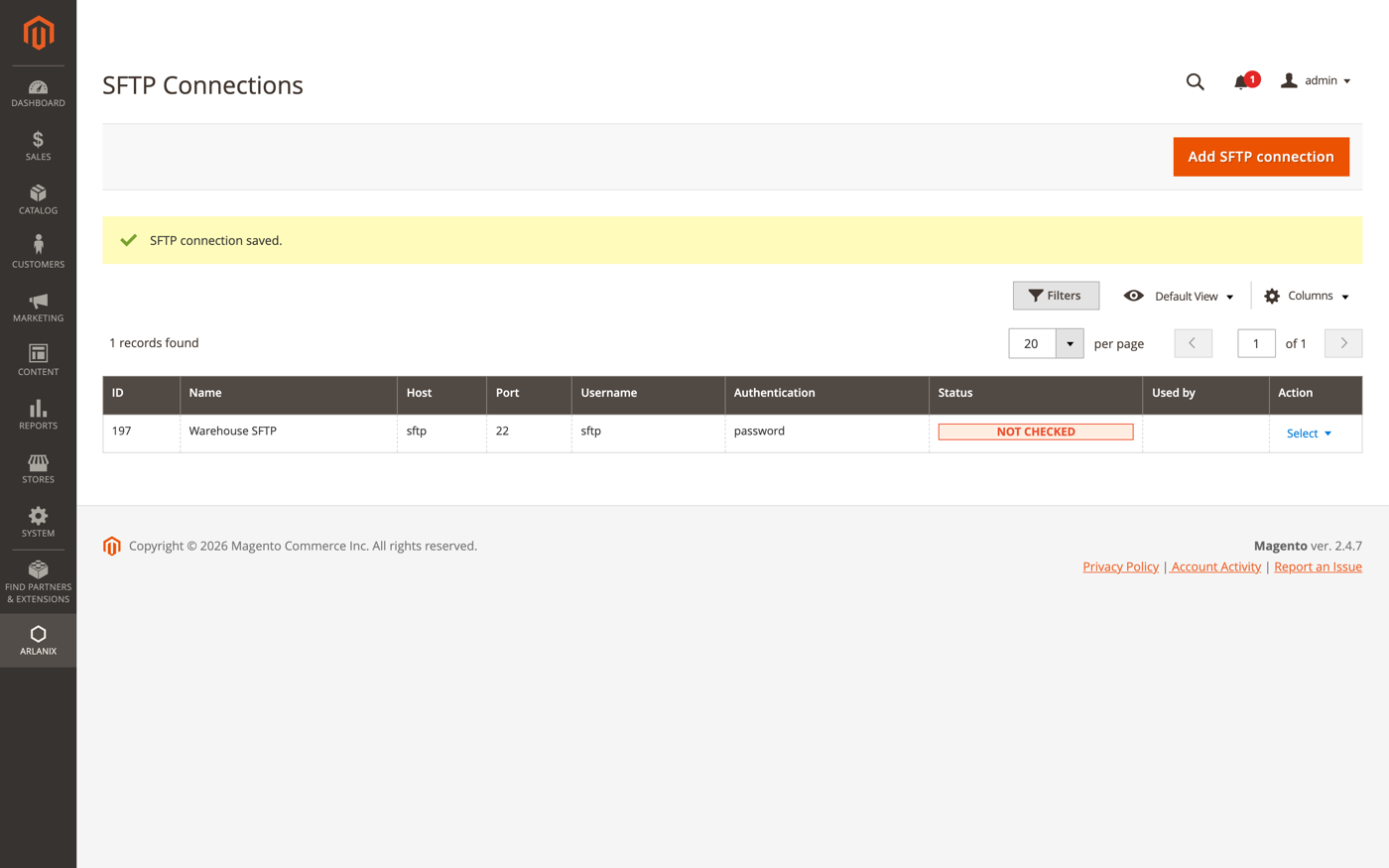
Press Save. The grid shows the connection with its status disconnected: it has not been tested yet.
Step 2. Test it
Open the connection again and press Test connection. The module connects, compares the server's host key with the fingerprint, logs in and reports:

A refusal says which step failed:
| Message | Cause |
|---|---|
| Could not connect to the SFTP server. Check host, port and network access. | Wrong host or port, or the Magento server cannot reach the SFTP server: a firewall, or an IP allow-list the Magento server is not on. |
| SFTP server host-key fingerprint does not match the configured SHA-256 fingerprint. | The fingerprint is wrong, or the server's key changed. Read it again, see below. |
| SFTP authentication failed. Check the username and authentication credentials. | Wrong username, password or key. |
| The private key could not be loaded. Check the key file and its passphrase. | The key file is not a private key, or its passphrase is wrong. |
Step 3. Point a feed at it
Open the feed, set Channel to SFTP in the General section, and unfold Channel:
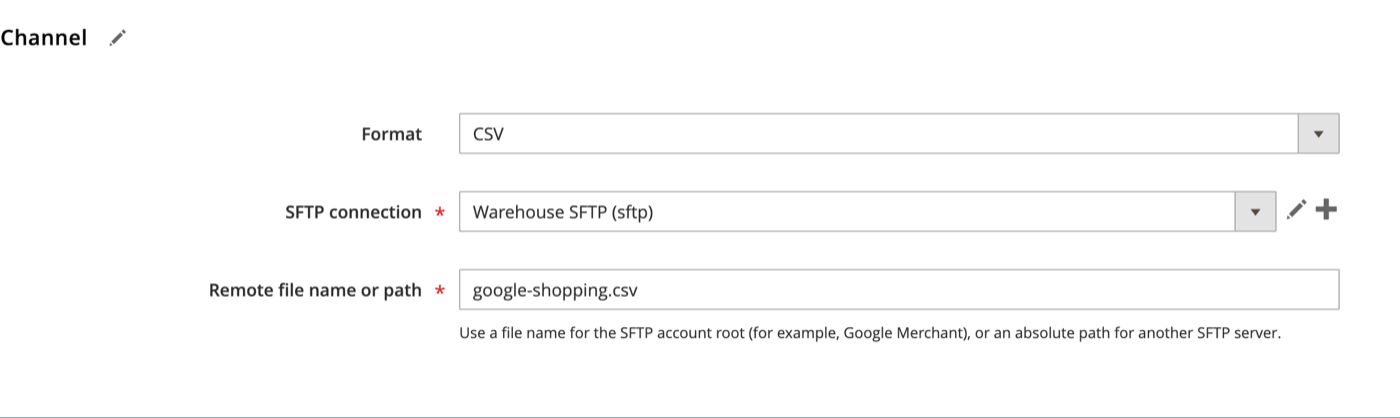
- Format: CSV, TSV or XML, as for a file feed.
- SFTP connection: the connection made above. The pencil edits it, + makes a new one.
- Remote file name or path: just a file name,
google-shopping.csv, for the account's root directory, which is what Google Merchant Center expects; or an absolute path,/feeds/google-shopping.csv, for a server of your own. The directory must already exist.
Save, then Generate now or wait for the schedule. The file is uploaded under a temporary name and renamed into place, so the server never sees a half-written feed. Run History shows the upload as the feed's deliver line.
Find the host-key fingerprint
Every SSH server identifies itself with a host key. Before logging in, the module computes the SHA-256 fingerprint of the key the server presents and compares it with the one stored on the connection. If they differ, nothing is sent. This is what stops a feed, and the password with it, from going to a server that only pretends to be yours.
The field takes the OpenSSH form of a SHA-256 fingerprint: SHA256: followed by 43 characters, for example:
SHA256:glAmvVKxBWXcUTPHGNA5+R0Oz/qOkA0MwZ1yJB8FeK4
Spaces around or inside the value are dropped when the connection is saved. An MD5 fingerprint (85:19:8a:fb:…) is not accepted.
Google Merchant Center
Merchant Center shows its SFTP server, port, fingerprint and username in one dialog:
- Open Merchant Center and go to Products → Data sources (older accounts: Products → Feeds).
- Press Add product source and choose Add products from a file.
- Select Add a file using SFTP or Google Cloud Storage, then press View SFTP and Google Cloud Storage details.
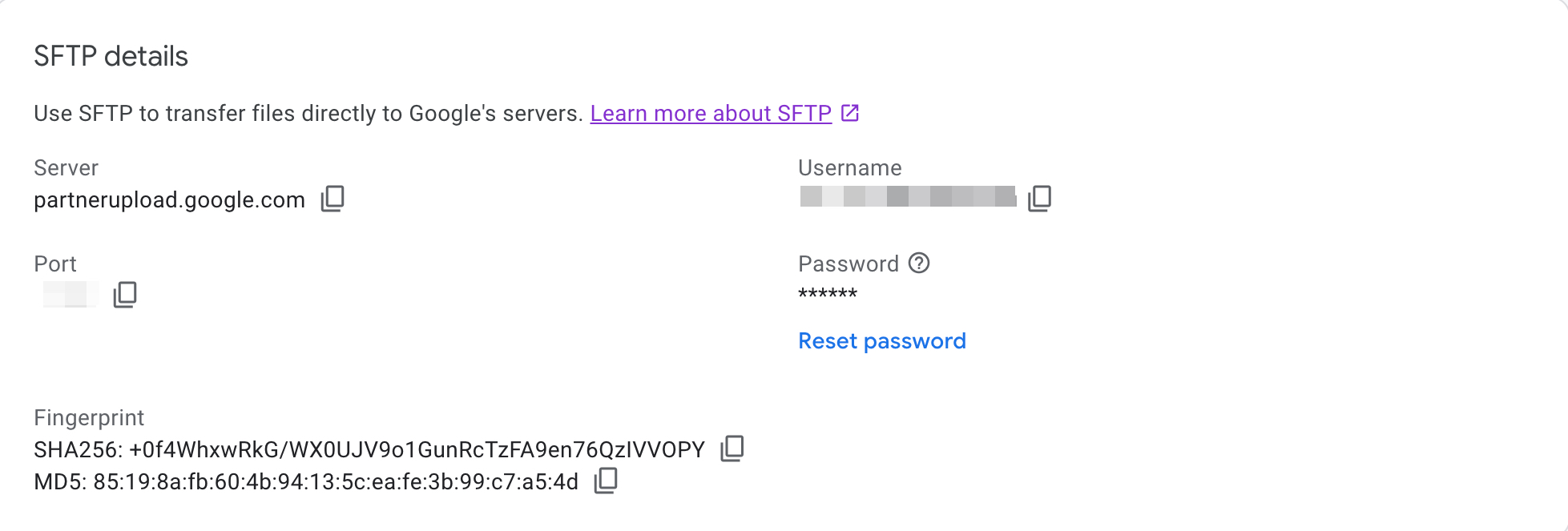
- Copy the SHA256 line of the Fingerprint into the connection's fingerprint field. Merchant Center prints it as
SHA256: +0f4…, with a space after the colon; paste it as it is. - Copy Server into Host, Port into Port and Username into Username. The password is the one you set with Reset password in the same dialog; Merchant Center shows it only once, so set it and paste it into the connection straight away.
The connection then looks like this:
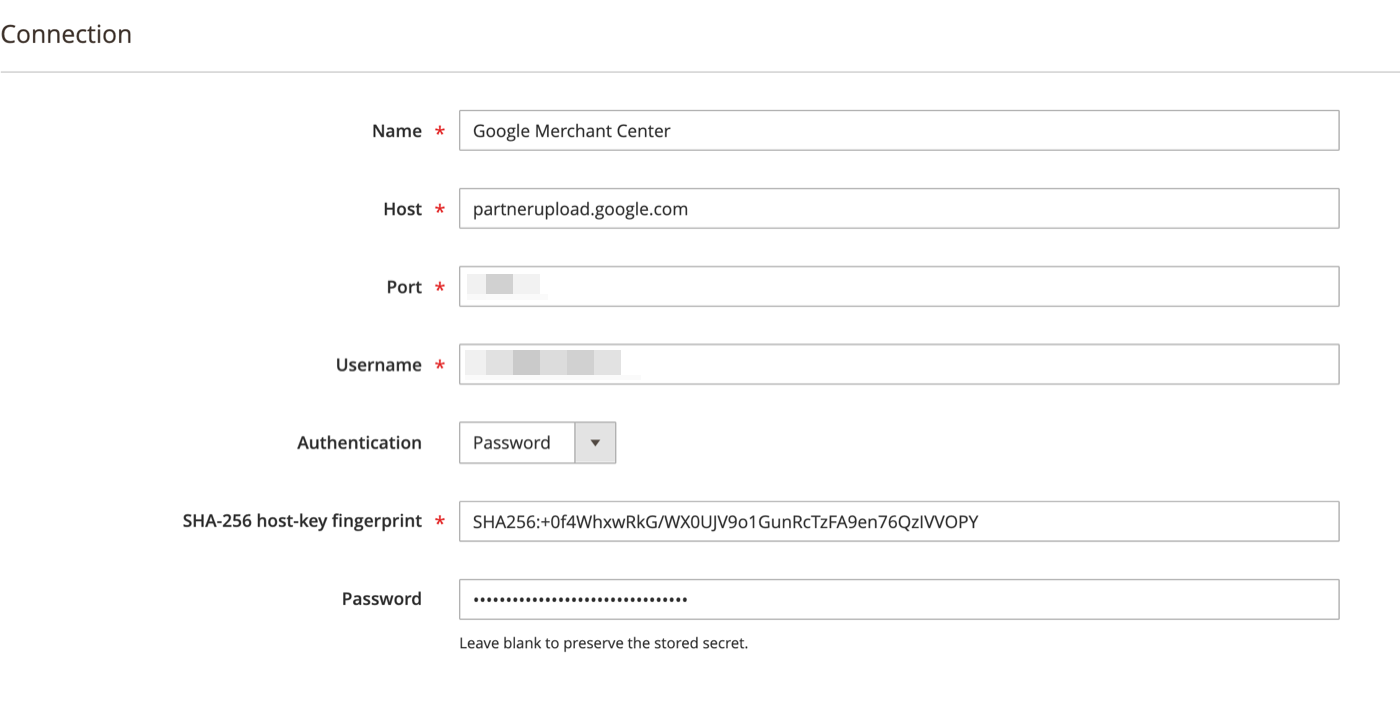
The remote file name of the feed is the file name you enter when you add the product source in Merchant Center.
Any other server
Ask whoever runs the server for the SHA-256 fingerprint of its host key; a hosting provider or marketplace usually publishes it next to the SFTP credentials.
If you can reach the server from a computer with OpenSSH (any Mac or Linux machine, or Windows with OpenSSH installed), read the fingerprint yourself:
ssh-keyscan -p 22 sftp.example.com 2>/dev/null | ssh-keygen -lf -
It prints one line per key the server offers, for example:
256 SHA256:glAmvVKxBWXcUTPHGNA5+R0Oz/qOkA0MwZ1yJB8FeK4 sftp.example.com (ED25519)
4096 SHA256:2rK+thAm1pVGMIeacFuBB9ZP9xziD78DBgdz5q4Xmu0 sftp.example.com (RSA)
The module checks the key it negotiates with the server. When the server offers several, that is the first of these it supports: ED25519, then ECDSA, then RSA. In the example above, enter the ED25519 line.
On a server you administer, the same fingerprints come from the keys themselves:
ssh-keygen -lf /etc/ssh/ssh_host_ed25519_key.pub
Confirm a fingerprint read over the network with the server's owner, or with the value printed on the server, before saving it: a fingerprint accepted blindly protects nothing. When the server replaces its host key, the test fails until the field is updated.