For arlanix/product-feed 1.0
Google Merchant Center
Of the three ways a feed reaches Merchant Center, the store can set up the plain File channel alone: the manual covers it. The channel on this page, Google Merchant Center (API), talks to Google's API and needs a Google Cloud service account connected first. SFTP has a page of its own.
Google Merchant Center (API) sends products one by one through the Merchant API as they change, without a file: price and stock changes reach Merchant Center within minutes. It creates its own data source in Merchant Center, so there is nothing to set up there by hand.
It is one request per product. That wins on a small catalogue and on the few products that change between runs, and loses on a large catalogue sent whole: for tens of thousands of products, publish a file with the File or SFTP channel and add it in Merchant Center once, where Google fetches it on the schedule you choose.
Connect an account
The API channel needs a Google Cloud service account that Merchant Center lets in. Make one in the Google Cloud console (IAM & Admin → Service accounts → Create service account, then Keys → Add key → JSON), and download its key file.
In the admin go to Arlanix → Google Accounts and press Connect an account.
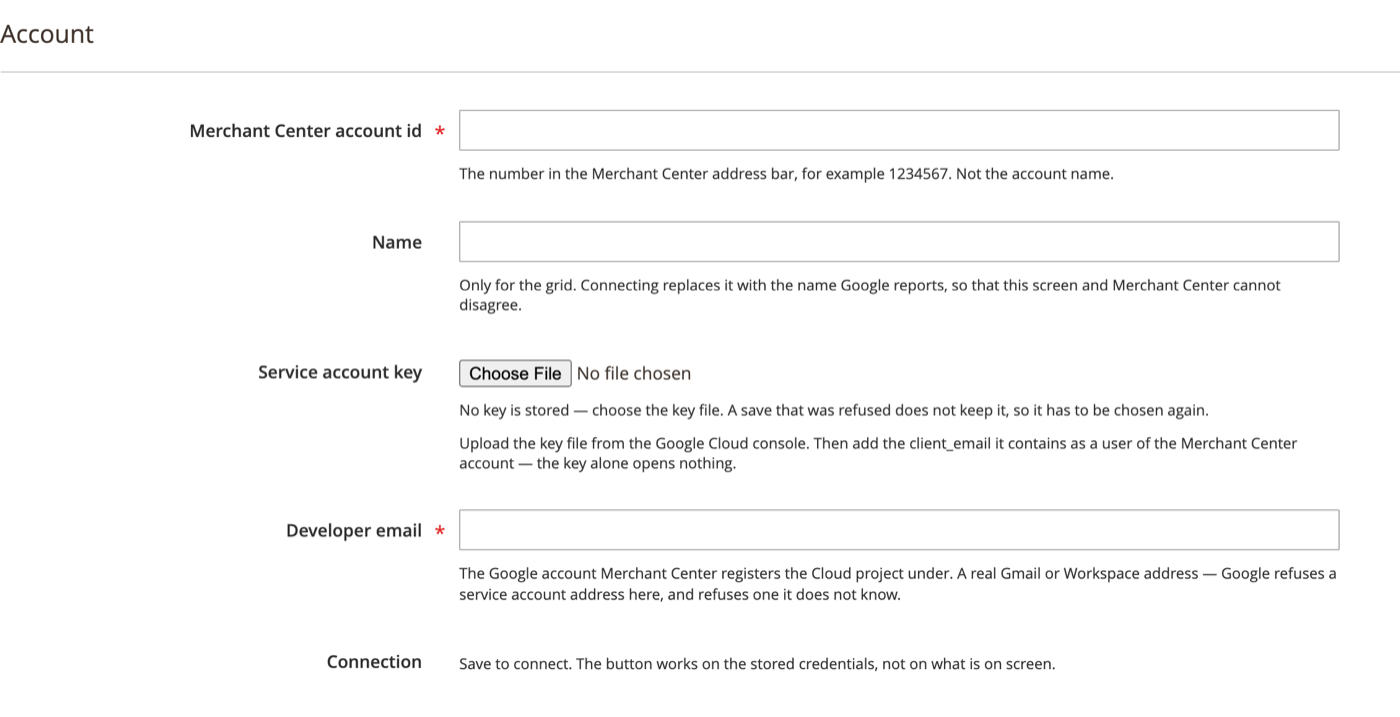
| Field | What to enter |
|---|---|
| Merchant Center account id | The number in the Merchant Center address bar, for example 1234567. Not the account name. |
| Name | Only for the grid. Connecting replaces it with the name Google reports, so this screen and Merchant Center cannot disagree. |
| Service account key | The JSON key file downloaded from the Cloud console. A file that is not a service account key is refused on the spot. |
| Developer email | A real Gmail or Workspace address that Merchant Center registers the Cloud project under. Google refuses a service account address here, and refuses one it does not know. |
Then, in Merchant Center, add the client_email from the key file as a user of the account (Settings → People and access). The key alone opens nothing.
Press Save, then Connect: the module asks Google who the key belongs to and shows the answer. A refusal says why and what to try; the usual cause is a client_email not yet added to the Merchant Center account.
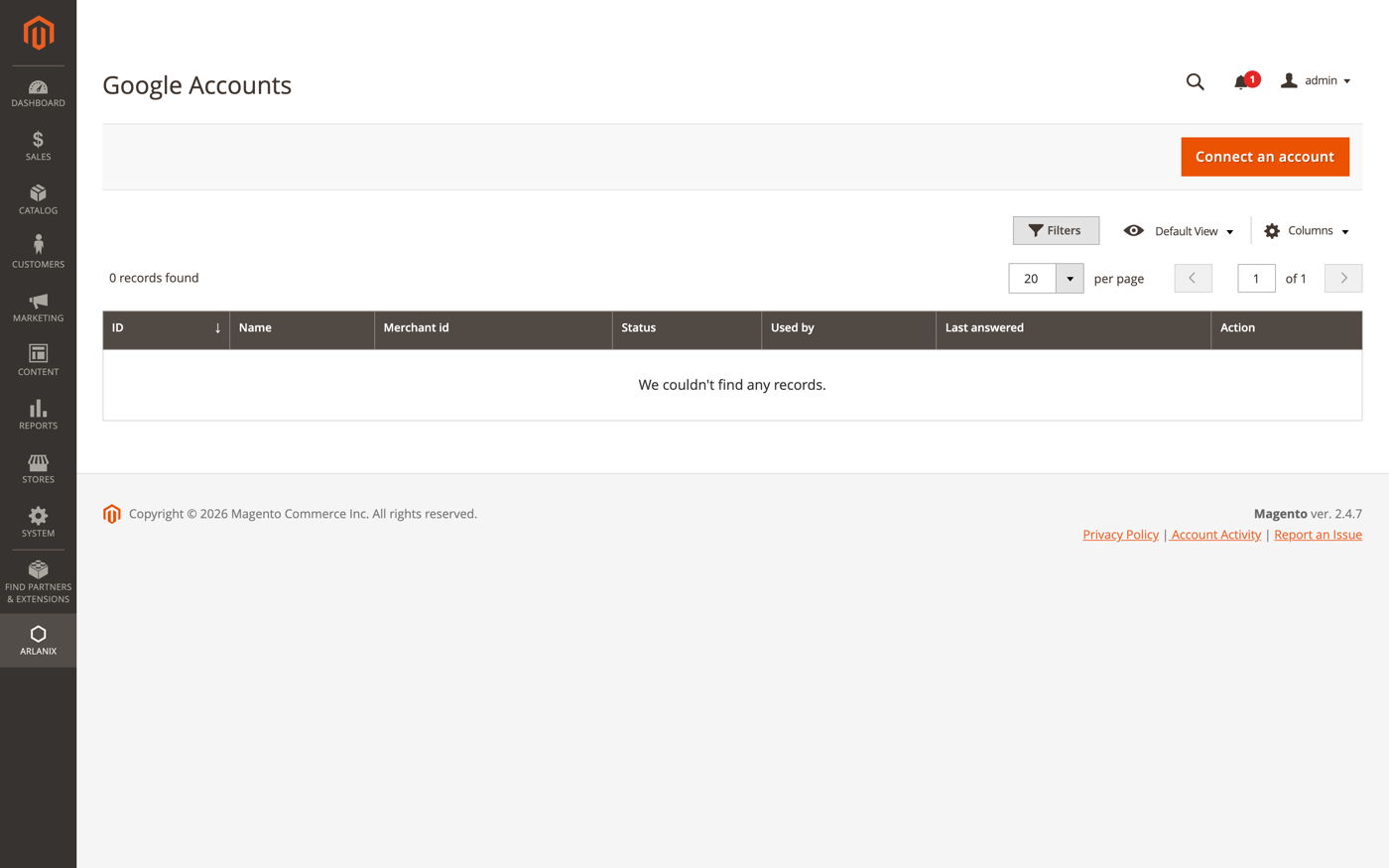
The API channel
Set up the feed
In the feed, set Channel to Google Merchant Center (API) and unfold Channel:
- Google account: the account connected above. + connects a new one.
- Feed label: your own name for this set of products, such as
mainorclearance. With the language it decides which products this data source owns. Google upper-cases it. - Content language: the language the titles and descriptions are in. Defaults to the store view's.
- Target countries: where these products are sold. Leave empty to use whatever the Merchant Center account is set up for.
- What to send: Send the whole product for a feed that owns its products. Send only the mapped fields for a feed that adds to what another source established; such a feed cannot delete products, because a patch cannot remove a product it does not own, and names the feed it adds to in Supplements feed.
Save the feed. The first run creates the data source in Merchant Center, from the label, language, countries and ownership saved here. To create it before the first run, press Register with Merchant Center in the Channel section. From then on the section says Registered as and the source's id.
A run never changes a data source that exists. After changing the target countries, press Update the registration: what changes is listed and confirmed first. Google refuses to change the label, language or ownership of an existing source, so the form locks the first two once the source exists: a different label needs a new feed.
Run the feed with Synchronize now or wait for its schedule. Every run compares the catalogue with what was sent last time and pushes only the products that changed, were added or were removed. Run History counts them as Changed, Added and Removed, and the grid's Last delivery column shows how many products were sent, are waiting, and were refused by Google.
Taxonomy locale
Merchant Center places every product by its Google product category. The category comes from the Google categories section of the feed, which every feed type shares: see Google categories. A Merchant Center feed adds one thing, the Taxonomy locale in its Channel section, which decides which of Google's taxonomy files the category search reads for this data source.